 CROSSFADE
 JbTecWiz
CROSSFADE
What's new
The latest versions for Windows, newest first. CROSSFADE offers each update itself, or open Settings › Updates.

Scratching like a record, and live video on the graphics card
A new scratch engine that plays every move of your hand when it happens, and live video that's smooth up to 8K.
Scratching that feels like a record
On a controller's jog wheel, or your finger on the screen. The cut-in is in Settings › Mixing.
- Each jog move plays at the moment it happened, so the record moves smoothly and evenly instead of in little steps
- A controller's crossfader is heard the instant it moves: quick taps for chirps, crabs and transforms all come through, without clicks
- Scratch cut-in: with the Scratch crossfader curve, choose how far the fader moves before the other deck cuts in, from 0.5 to 3 mm
- Fast pushes get brighter, as a real record does, and nothing harsh folds back, even at six or eight times the speed
- Let go of a playing record and the slipmat drags it back up to speed, landing on the beat; a moving record on a stopped deck slows to a stop
- A controller's jog, faders and buttons are handled the moment they arrive, even while the screen is being drawn

Smooth live video, up to 8K
Every stream from GO LIVE, set up in Settings › Live video.
- When your screen and the video encoder share a graphics card, each picture goes from drawing to encoding without leaving it: in our tests an 8K show went from a few new pictures a second to about 25
- Each picture is drawn on the screen refresh nearest its time, so 30 fps shows went from dozens of repeated frames to almost none
- If a show goes out jerky (8K on a slower PC, say), CROSSFADE tells you on air, suggests a smaller size, and says so again in Settings › Live video
- The on-air line shows how many of the pictures going out are new, when that falls short

And the rest
- REC without the jolt (1.0.72): recording with video no longer stops the decks for half a second while it starts, and nothing from the moment you press REC is lost
- Back to full speed (1.0.72): after a busy moment (a library scan, starting a recording) the decks' screen goes back to its smoothest, instead of staying slower for the night
- Whole track titles (1.0.73): a long title uses all the room up to the time, and scrolls once when the track loads, or when you point at it
- A clean close (1.0.70): no crash report after closing on PCs with two graphics cards
- Messages you can't miss (1.0.69): the guests' message count is a bigger, bright yellow badge
- File pickers the right size (1.0.68): they open as a normal window, not stuck full screen
Italiano, and the TV without a cable
CROSSFADE in a sixth language, and a TV that does screen mirroring as a second screen for the show. 1.0.66 is the same, built fresh.
Connect a TV
In Settings › Video, Visualiser or Karaoke, the SEND TO SCREEN menu, or Ctrl P.
- Pick a smart TV, Fire TV, Roku or projector in Windows' Cast panel
- If it only copies your screen, CROSSFADE offers to make it a second screen, so the decks stay on the laptop
- Then the video, the visualiser or karaoke goes on it, full screen and in time with the music
- If a TV or projector goes away, its screen closes instead of landing full screen over the decks
- Chromecast and Google TV don't take Windows' screen mirroring: use an HDMI cable for those

Italiano
Settings › Look › Language. A new install on an Italian Windows starts in Italian.
- Every page, menu, message and the tour in Italian
- DJ words (CUE, SYNC, LOOP, the effects) stay in English, as in the other languages
- KEY LOCK, the words beside a Settings switch and LIVE VIDEO SETTINGS now read right in every language

A music editing suite
Cut, trim and fade on the beat, twelve effects you hear before you apply them, loudness measured to EBU R 128, and a spectrogram. And Settings, easier to find your way round.
Cut, trim and edit
Right-click a track › Edit the music, or open it from a deck's menu, AI · TOOLS or Ctrl P.
- Cut, copy, paste and trim, snapped to beats, bars or zero crossings, with joins that never click
- Fades, repeat (a longer intro), reverse, silence, gain and normalise
- Markers, and undo as far back as you like, with the history to click back through
- Twelve effects, previewed before they're applied: EQ, compressor, limiter, tempo, pitch, speed, echo, reverb, stereo, noise gate, clean up and AI stems

Loudness, and saving safely
The Loudness tab measures the whole track, or just the part you've picked.
- Integrated loudness, true peak, loudness range and more, to EBU R 128
- Match loudness to −14 (streaming), −9 (club) or −23 (broadcast), with a limiter so it never clips
- Save a copy as MP3, WAV or FLAC with its tags, and the markers as hot cues; export the selection, or split at the markers
- Save over the original only if you choose, and a copy of the original is kept first

- Settings › Visualiser: open it or send it to a screen, pick the visual, change it every 16 bars, and the camera and messages on it
- Settings › Message wall: guests' messages, photos, videos, requests and the mic on a page of their own
- Settings › Recording: what REC records, the format, the folder, Fix a set and the video size, together
- Settings › Controllers: timecode vinyl and the phone remote are here now, as ways of playing CROSSFADE
Ready for the gig
Everything that could go wrong on the night checked before you leave, a safety net if the music runs out, the client planning the night with you, and smooth on any screen.
Gig check, and the night on this computer
Tonight › Gig check or Settings › Mixing › Gig goes through everything before you leave.
- Tonight's tracks open and are analysed, and none is on the do-not-play list
- The sound card and headphones are there, the laptop is plugged in, there's room to record and the internet is up
- Take the night with you: tracks on a network drive are copied to this computer, or to a folder you choose, such as a USB stick

Fix the set
After the night, Settings › Recording › Fix a set opens a recording.
- Cut what you'd rather forget; the joins are smoothed
- Trim the silence at the start and the end
- Bring it all to one even loudness (−14 LUFS), with its tracklist written

- Never silent: with nothing ready as a track ends, a backup is loaded 25 seconds before (your Automix list first) and starts if the music stops
- The client plans the night: Tonight's client planner gives them a page for the moments, the songs they want and a Do Not Play list, merged into Tonight
- Phrase mixing: Automix brings the next track in on a 16-beat phrase, fades over whole bars and swaps the vocals when both have stems
- Scratching that feels like vinyl: slow drags stay clean, the record catches up as on a slipmat, and late controller messages don't make it wobble
- Mix coach and report: how each mix went, and after the night a page of what played with its energy over the evening
- Ctrl+P: type to do anything: commands, Settings pages and tracks
- Smooth on any screen (1.0.61): every refresh of a 60, 120, 144 or 240 Hz screen, evenly when a PC can't draw that fast, and video screens that never hold the decks back
- Tidier (1.0.60): sound cards and cameras by their real names, the video wall preview in its real shape, and long paths that keep their end in view
An EQ that hears the room
A master EQ that measures the room for you, jog wheels that show what you want, your library on your phone too, and everything smoother, sharper and easier to use.
A master EQ, and it measures the room
EQ beside the MASTER knob opens eight bands on the master, before the limiter.
- A live analyser under the curve; drag a band's point, the wheel for its width, right-click for its type
- Cuts up to 48 dB an octave, 12 presets from Club to Late night, and your own
- Auto gain, so on and off sound as loud; A and B to compare; undo and redo
- Measure the room: pink noise while your mic listens, then big cuts where it booms and gentle lifts where it's thin

Jog wheels that show what you want
Right-click a jog wheel to choose its middle, deck by deck.
- The cover, the deck's letter, the deck's EQ or the master EQ
- A spectrum, the whole track round a ring, or the time left
- The key on a Camelot wheel, the beat of the bar, the level, or a picture of your own

Your library on your phone too
Settings › Library › Start sync, then type the code on CROSSFADE for Android on the same Wi-Fi.
- Cue points, hot cue names and colours, loops and memory cues
- Stars, track colours, My Tags, beat grids set by hand and playlists
- What changed on one side wins; what changed on both is put together

- As smooth as your screen: every frame it shows, 60, 120 or 144 a second, for about half the processor time
- Any screen: a small laptop shows all of CROSSFADE, a big screen a little bigger (Settings › Look › Interface size)
- New skins: Cupertino Light and Pearl (light), Cupertino Dark, Space Grey, Sierra, Rose Gold and High Contrast
- No mouse needed: Tab round every control, screen readers say what's there, and Windows' high contrast is followed
- Tonight: times on hour and minute wheels, and the clock looks like the button it is
Lights, a crowd vote and tonight's timeline
Lights that follow the music, guests who vote for the next track, and the evening's big moments on time.
Lights that follow the music
Settings › Lights drives Philips Hue, Govee and DMX lights from the deck on air, all together.
- Colours: the decks' colours, the track's key round the Camelot wheel, a rainbow, or one colour
- Movement: pulse on the beat, follow the bass, a chase from light to light, or steady
- A white flash as a drop lands and softer light through a breakdown; a soft glow or dark with no music; BLACKOUT
- Hue: find the bridge, press its button to pair, use every colour light or one room; they're put back as they were afterwards
- Govee: lights with LAN Control on are found on your Wi-Fi
- DMX: Art-Net, an Enttec DMX USB Pro or an Open DMX; RGB, RGBW and dimmer fixtures from a start address

Guests vote on the next track
The message wall's VOTE tab (F7) puts the three tracks that mix best out of the one playing on the guests' phones and the screens.
- Their phones switch to the vote with a buzz; one vote each, changeable until the time's up
- The screens show the choices, the bars, the time left and the QR code, then the winner
- The winner goes next in Automix, onto the free deck or into Prepare, as you choose
- Or a vote for every track, 30 seconds after each new one goes on air

Tonight: the evening's moments
Click the clock in the top bar (or press F6) to plan the night: the first dance, the speeches, the last song.
- Each moment can remind you, get its track ready on the free deck, or mix it in on time with Automix
- A warning 5 minutes before, and the clock counts down the last 15 minutes
- Start from a wedding or a birthday, then set the times and pick the tracks

Free sounds, a voice changer and what to play next
320 free sounds to download for the sampler, ten voices for the mic, and a list of the tracks that mix best out of the one playing, which keeps up as you play. All three are in the Android app too.
320 free sounds
Click + FREE SOUNDS on the sampler for 20 packs of sounds from JbTecWiz.com: air horns and sirens, hype vocals, crowds, risers and impacts, an 808 drum machine and 808 bass notes, drum kits, claps and stomps, Latin and world percussion, bells, cinematic hits, piano and organ chords, weather and nature, cartoon, game, alarms, explosions and animals.
- Free to use anywhere, in your mixes, streams and recordings, with no credit needed
- Play any sound first, then put it on a pad, or fill a whole bank with a pack
- Search all 20 packs at once: horn, clap, rain, or a key like 8A for the chords
- The piano and organ chords carry their Camelot keys, so they're in key with the track
- New packs turn up in the window without an update, marked NEW

A voice changer for the mic
Right-click MIC and pick a voice: DEEP, MONSTER, CHIPMUNK, ALIEN, ROBOT, RADIO, MEGAPHONE, HARMONY or HARD TUNE, which snaps singing onto the notes of the track that's playing.
- Made for karaoke: hard tune follows the key of the deck on air
- It works on a guest's phone mic too, and on anything you record from the mic into a pad
- Also in Settings › Audio › Voice changer, before the echo and reverb
- A purple dot on MIC shows a voice is on; the macro command
voice robotpicks one too

Suggested next
Click Suggested next in the library and the list shows the 40 tracks that mix best out of the one playing: a key that fits, a tempo within reach and the energy held or lifted a little, the best first.
- It keeps up by itself: a new track on air, a change of key or tempo, and the list follows
- What's been played tonight and what's on a deck are left out, and each song is listed once
- Drag a suggestion onto a deck, or load and prelisten it, as from any list
- Also new: Settings › About links to CROSSFADE for Android, and update checks always find the newest version

A new look, with liquid glass
CROSSFADE now looks like a pro studio app: calm graphite greys, panels of glass over soft colour that moves with the music, a redesigned Settings, and the big panels in windows of their own.
Liquid glass
The decks, the mixer, the library and the top bar are panes of glass over a soft wash of the decks' colours, which drifts slowly and brightens on the beat. Buttons are clear glass, and turn to coloured glass when they're on.
- Graphite greys, Windows 11's own font, machined knobs and fader caps, and smooth level meters
- Lit buttons, meters and waveforms glow in neon. Settings › Look › Glow makes it subtle or turns it off
- Prefer solid panels? Switch off Liquid glass on the same page
- The Neon skin brings back the colours from before 1.0.46

Settings, redesigned
Settings is laid out like a pro app's: a sidebar of pages, each with its own coloured icon, and on each page tidy groups with one setting to a row and every control lined up on the right.
- Switches for on and off, sliding choices, and lists that drop down when you click them
- Each explanation sits just under its own setting
- Smooth scrolling, with the mouse wheel anywhere over the window and a scroll bar you can drag
- Menus are frosted glass, with a rounded highlight and plain ticks

Panels in windows of their own
Settings and the big panels open in windows of their own, so you can keep one open beside the decks or put it on another monitor while you mix.
- Settings, the message wall, Help, macros, skin colours, the beat grid editor, GO LIVE, What's new and AUTO-MAP
- Questions and text boxes are small windows too, in front of the window they came from
- A panel that's already open comes to the front when you ask for it again
- Also new: places to go live added and removed in one click, and a CPU meter that shows its load as a percentage

Every screen, the video wall and the message wall
Send the karaoke words, the video and the visualiser to whichever screen you like, spread the video mix across several screens, and let your guests send messages, photos, videos and song requests from their phones, or borrow the mic.
Send to any screen
Keep the decks on your laptop and put the karaoke words on the TV, the visualiser on the projector and the video on a third screen. SEND TO SCREEN lists every display connected, numbered, and whatever you pick opens full screen there.
- For the karaoke screen, the video screen and the visualiser, beside each one's open button in Settings
- Or right-click the karaoke or video screen, or press S in the visualiser
- IDENTIFY DISPLAYS puts a large number on each display, so you know which is which
- Pick your own screen and it becomes a window beside the decks again
Video wall
The video screen can now be a wall of two to nine displays in a grid: 2 × 1, 3 × 1, 4 × 1, 1 × 2, 2 × 2, 3 × 2, 4 × 2 or 3 × 3. Show one large picture across all of them, or the same picture on each.
- Each screen opens full screen on a display of its own
- The picture allows for the screens' frames, so lines run straight across the gaps
- IDENTIFY DISPLAYS puts a large number on each display, so you know which is which
- Set it up in Settings › Video › Video wall, and open it with F8
Message wall
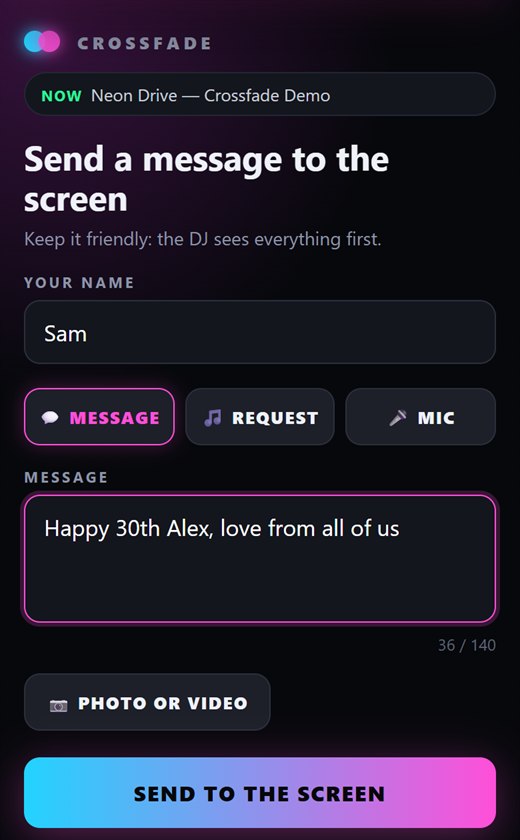
Guests on the venue's Wi-Fi scan the QR code on the screen and send a message, a photo or a short video. No app is needed. Nothing goes up until you approve it, unless you choose to let messages straight through.
- Rude words, photos and videos always wait for you, and a phone can be banned for the night
- Messages pop up one at a time, run along a ticker, or fill the screens as a mosaic
- Shown over the video mix, and over the karaoke screen, the visualiser and your live stream if you want
- Guests' videos play on the screens without sound, or load one onto a deck to play it through the mix
- Open the queue with F7 or MESSAGES in the top bar

Song requests
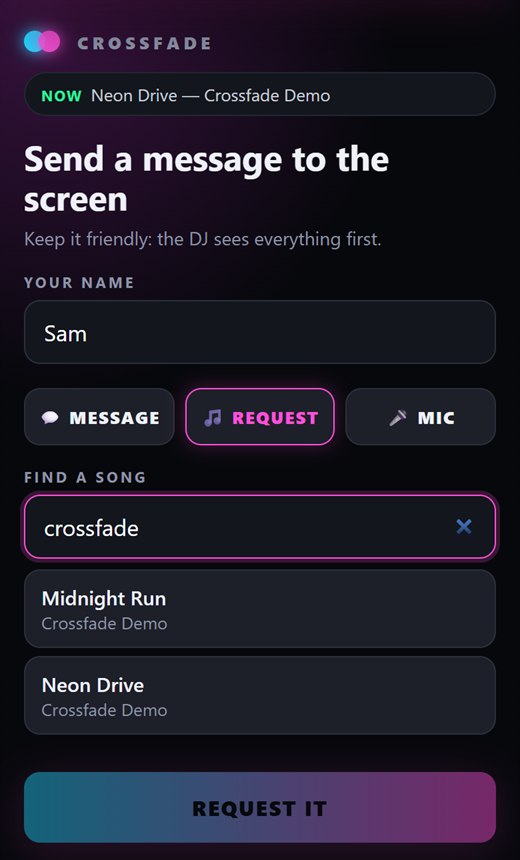
The same page has a REQUEST tab. Guests search your library, or type in any song if you allow it, and ask for it. When several people ask for the same song, their names are added to one request.
- Load a request onto a deck, play it next in Automix or add it to Prepare, or let requests go straight into Automix
- NOT TONIGHT asks for a reason, and the guest sees it; REPLY sends a quick word such as "Coming up soon!"
- Guests' phones show how their request is getting on: with the DJ, coming up, playing now, played
- When a request plays, the screen shows who asked for it

A guest's phone as the mic
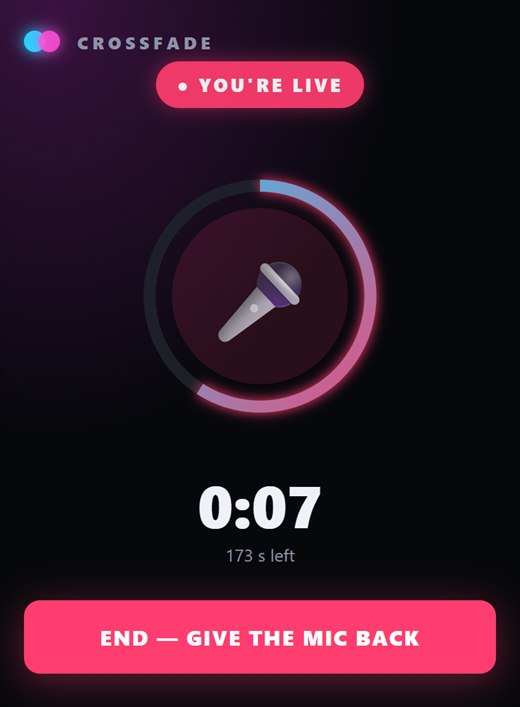
Guests can ask for the mic from the same page. You hand it over in the queue (F7 › MIC), and their phone becomes a microphone through the speakers, with the music ducking as it does for your own mic.
- They see a timer and an END button; you see their level and can end it at any time
- Choose how long a turn lasts: 1, 3 or 5 minutes, or no limit
- Best for speeches and announcements: there's a short delay over Wi-Fi, so it isn't suited to singing
The mic page uses a secure connection with a certificate made on your PC, so phones show a one-time warning that the page isn't private. Guests continue past it.
On your phone too.
The Android app on Google Play has caught up with Windows 1.0.66, apart from a few things that need a PC.
- Italiano (1.0.42): every screen in Italian, as well as English, Spanish, German, Portuguese and French
- Connect a TV (1.0.43): the video, the visualiser or karaoke on a TV over screen mirroring, from Settings or the magnifier
- Every button in reach (1.0.41): on a phone the top bar slides sideways, with search, ⚙ and ? always there
- The music editor (1.0.36): hold a track › Edit the music. The same twelve effects and loudness matching, saved as M4A or WAV in Music/Crossfade/Edits
- Ready for the gig (1.0.36): Gig check, Never silent, the client planner, do-not-play and wishes, phrase mixing, the Mix coach, the evening report and Fix the set
- Type to do anything (1.0.36): the magnifier in the top bar, or Ctrl+P with a keyboard
- Go live from Settings (1.0.39): Settings › Live video and Settings › Broadcast, as on the PC, and TalkBack reads every control
- On more devices (1.0.38): phones, tablets and Chromebooks that couldn't install it before
Every release.
Each version's full notes are in the app, under ? › WHAT'S NEW.
| Version | Date | What changed |
|---|---|---|
| 1.0.74 | 26 Nov | Live video stays on the graphics card: an 8K show at about 25 new pictures a second, and less work for the PC at every size |
| 1.0.73 | 25 Nov | Long track titles on the decks scroll instead of being cut short |
| 1.0.72 | 25 Nov | Pressing REC no longer stops the decks for a moment, and the decks get back to full speed after a busy moment |
| 1.0.71 | 25 Nov | Fewer repeated frames on air, and a warning when the PC can't keep up with the stream's size |
| 1.0.70 | 24 Nov | No crash report after closing, on PCs with two graphics cards |
| 1.0.69 | 24 Nov | The guests' message count is a bigger, brighter badge |
| 1.0.68 | 24 Nov | File pickers open as a normal window, not stuck full screen |
| 1.0.67 | 23 Nov | Scratching that feels like a record: every move on time, a scratch cut-in and a platter with weight |
| 1.0.66 | 22 Nov | The same as 1.0.65, built fresh |
| 1.0.65 | 22 Nov | CROSSFADE in Italian, and a TV over screen mirroring as a second screen for the video, the visualiser or karaoke |
| 1.0.62 | 21 Nov | A music editing suite: cut, trim, twelve effects and loudness; and Settings pages for the visualiser, the message wall and recording |
| 1.0.61 | 18 Nov | Smooth on any screen's refresh rate, video screens that never hold the decks back, and no hitches while a big library loads |
| 1.0.60 | 17 Nov | Choose where gig copies go, sound cards shown by name, the video wall preview in its real shape, and tidier everywhere |
| 1.0.59 | 17 Nov | Ready for the gig: Never silent, Gig check, the client planner, phrase mixing, the Mix coach, Fix the set and Ctrl+P |
| 1.0.58 | 15 Nov | Fine tuning in the EQ: typed values, keyboard nudges, a ±3 dB scale and listening to one band |
| 1.0.57 | 15 Nov | A master EQ that measures the room, jog wheels your way, phone sync, smoother and sharper, keyboard and screen readers |
| 1.0.56 | 14 Nov | Lights that follow the music, guests vote on the next track, and Tonight's timeline |
| 1.0.55 | 14 Nov | Decks no longer start and stop by themselves with turntables on |
| 1.0.54 | 14 Nov | Round play buttons in Free sounds |
| 1.0.53 | 14 Nov | Update checks compare version numbers, so a newer version is always found |
| 1.0.52 | 14 Nov | Suggested next: a live list of what to play next |
| 1.0.51 | 14 Nov | Settings › About links to CROSSFADE for Android on Google Play |
| 1.0.50 | 14 Nov | Search the free sounds |
| 1.0.49 | 14 Nov | The free sounds grow to 320, in 20 packs |
| 1.0.48 | 14 Nov | A voice changer for the mic, and free sound packs for the sampler |
| 1.0.47 | 3 Nov | Settings scrolls all the way, smoothly; the CPU meter shows a percentage |
| 1.0.46 | 3 Nov | A whole new look: liquid glass, frosted menus and a redesigned Settings |
| 1.0.45 | 3 Nov | Places to go live added and removed in one click |
| 1.0.44 | 3 Nov | Questions and text boxes in windows; new windows open in front |
| 1.0.43 | 3 Nov | The big panels in windows of their own |
| 1.0.42 | 3 Nov | Settings in a window of its own |
| 1.0.41 | 2 Nov | Send the karaoke screen, video and visualiser to any screen; SHIFT stays on |
| 1.0.40 | 23 Oct | Guests send videos, and use their phone as the mic |
| 1.0.39 | 23 Oct | Replies to song requests |
| 1.0.38 | 22 Oct | Song requests from guests' phones |
| 1.0.37 | 22 Oct | Video wall and message wall |
| 1.0.36 | 17 Oct | Better search, filters and AI tools |
| 1.0.35 | 17 Oct | 32 effects, crossfader FX, realistic scratch sound |
| 1.0.34 | 16 Oct | Choose the graphics card that encodes your stream |
| 1.0.33 | 16 Oct | Much faster library |
| 1.0.32 | 16 Oct | Stream to several places, up to 8K |
| 1.0.31 | 16 Oct | Update settings |